Using multiple sort strategy to sort Excel file#
To sort an Excel file, you can use the shell command process-excel-file.
Before starting, ensure that the Jira related information is configured correctly by running the update-jira-info command.

For more info about this command, please check update_jira_info.
Step 1: Prepare the definition file#
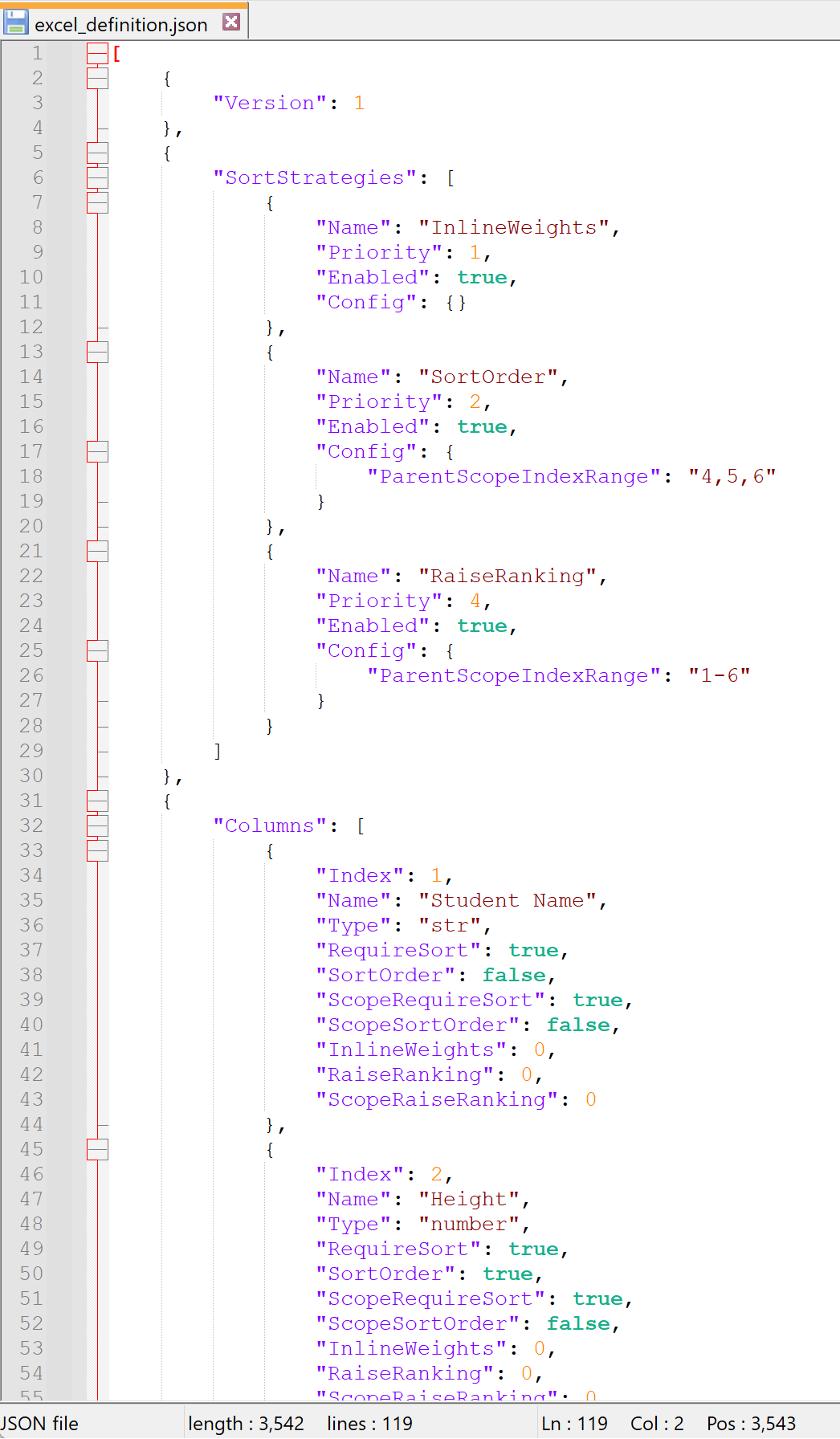
To begin, create a definition file with the SortStrategies section. Three strategies have been applied:
-
The
InlineWeightsstrategy has the highest priority and takes into account columns with anInlineWeightsvalue greater than 0. In this case, Communication, Learning Ability, and Skills are considered. -
The
SortOrderstrategy considers columns withScopeRequireSortset totrueand does not affect the parent level sort order. In this example, Student Name, Height, and Weight are considered. -
The
RaiseRankingstrategy considers columns with aScopeRaiseRankingvalue greater than 0 and also does not affect the parent level sort order. In this case, only the Wealthy column is considered. TheParentScopeIndexRangeinside this strategy's config guarantee the parent level sort order will not be effected.
The example file and its text version are provided below.
[
    {
        "Version": 1
    },
    {
        "SortStrategies": [
            {
                "Name": "InlineWeights",
                "Priority": 1,
                "Enabled": true,
                "Config": {}
            },
            {
                "Name": "SortOrder",
                "Priority": 2,
                "Enabled": true,
                "Config": {
                    "ParentScopeIndexRange": "4,5,6"
                }
            },
            {
                "Name": "RaiseRanking",
                "Priority": 4,
                "Enabled": true,
                "Config": {
                    "ParentScopeIndexRange": "1-6"
                }
            }
        ]
    },
    {
        "Columns": [
            {
                "Index": 1,
                "Name": "Student Name",
                "Type": "str",
                "RequireSort": true,
                "SortOrder": false,
                "ScopeRequireSort": true,
                "ScopeSortOrder": false,
                "InlineWeights": 0,
                "RaiseRanking": 0,
                "ScopeRaiseRanking": 0
            },
            {
                "Index": 2,
                "Name": "Height",
                "Type": "number",
                "RequireSort": true,
                "SortOrder": true,
                "ScopeRequireSort": true,
                "ScopeSortOrder": false,
                "InlineWeights": 0,
                "RaiseRanking": 0,
                "ScopeRaiseRanking": 0
            },
            {
                "Index": 3,
                "Name": "Weight",
                "Type": "number",
                "RequireSort": true,
                "SortOrder": false,
                "ScopeRequireSort": true,
                "ScopeSortOrder": false,
                "InlineWeights": 0,
                "RaiseRanking": 0,
                "ScopeRaiseRanking": 0
            },
            {
                "Index": 4,
                "Name": "Communication",
                "Type": "priority",
                "RequireSort": false,
                "SortOrder": false,
                "ScopeRequireSort": false,
                "ScopeSortOrder": false,
                "InlineWeights": 1,
                "RaiseRanking": 0,
                "ScopeRaiseRanking": 0
            },
            {
                "Index": 5,
                "Name": "Learning Ability",
                "Type": "priority",
                "RequireSort": false,
                "SortOrder": false,
                "ScopeRequireSort": false,
                "ScopeSortOrder": false,
                "InlineWeights": 2,
                "RaiseRanking": 0,
                "ScopeRaiseRanking": 0
            },
            {
                "Index": 6,
                "Name": "Skills",
                "Type": "priority",
                "RequireSort": false,
                "SortOrder": false,
                "ScopeRequireSort": false,
                "ScopeSortOrder": false,
                "InlineWeights": 3,
                "RaiseRanking": 0,
                "ScopeRaiseRanking": 0
            },
            {
                "Index": 7,
                "Name": "Wealthy",
                "Type": "bool",
                "RequireSort": false,
                "SortOrder": false,
                "ScopeRequireSort": false,
                "ScopeSortOrder": false,
                "InlineWeights": 0,
                "RaiseRanking": 1,
                "ScopeRaiseRanking": 0
            }
        ]
    }
]
Step 2: Prepare the Excel File#
We can now create the Excel file based on the definition file.

Step 3: Running the Shell Command#
Running the process-excel-file command will give us the final result.

Step 4: Congratulations!#
You can now see that the excel_sorted.xlsx file has been created successfully!

Additional Information#
If you only want to know which steps will be triggered or want to see detailed information about the Excel or definition file, you can append the --dry-run option to the command before running it.
