Template Files#
After installation, the generate-template command will be installed. You can type generate-template -h in the shell to verify.
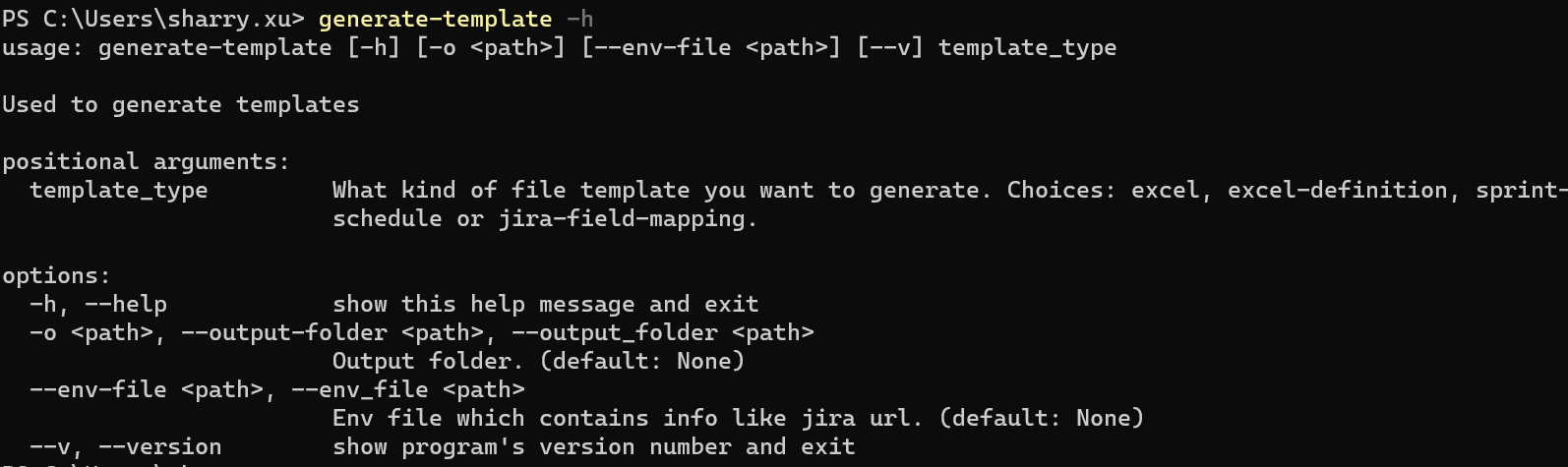
You can use this command to get all file examples you will need when you are using this package.
Options#
template_type
There are up to 4 kinds of file that will be (directly) used when running the command. For more info, please check Excel, Excel Definition, Sprint Schedule and Jira Field Mapping.
-h and --help
Print out the help message and tell the user how to run the command.
-o and --output-folder
Indicate where to put the output file. Absolute or relative path are all supported.
Default: Current shell location.
--env-file
Indicate the environment file. Absolute or relative path are all supported.
Default: Environment file inside the package.
Check this to get the default file and more info.
--v and --version
Print out the version info.
Excel#
You can type command
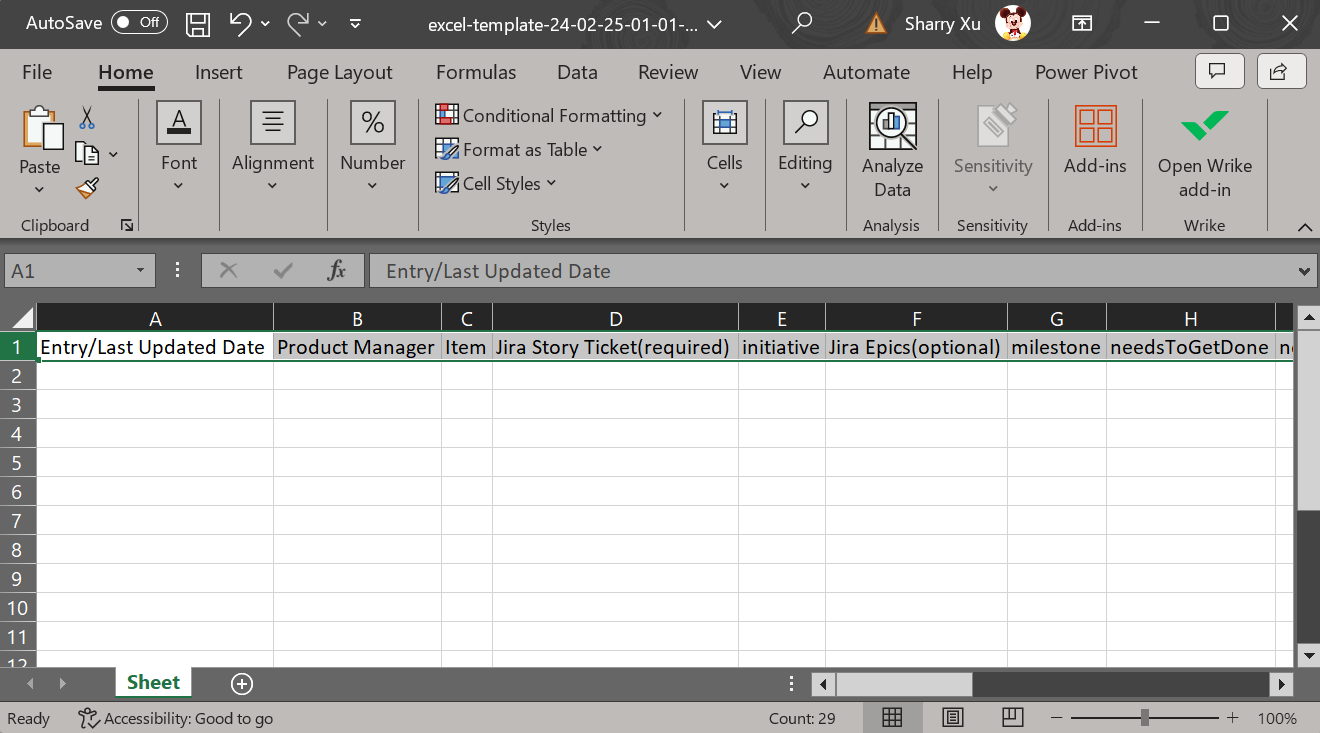
generate-template excelin the shell then you will see an Excel file has been created in the current folder like below.
Notice: If you want to put the output file to other folder, you can use the
--output-folderto specify.Below is what's inside the Excel file.
Excel Definition#
Like previous command, you can type command
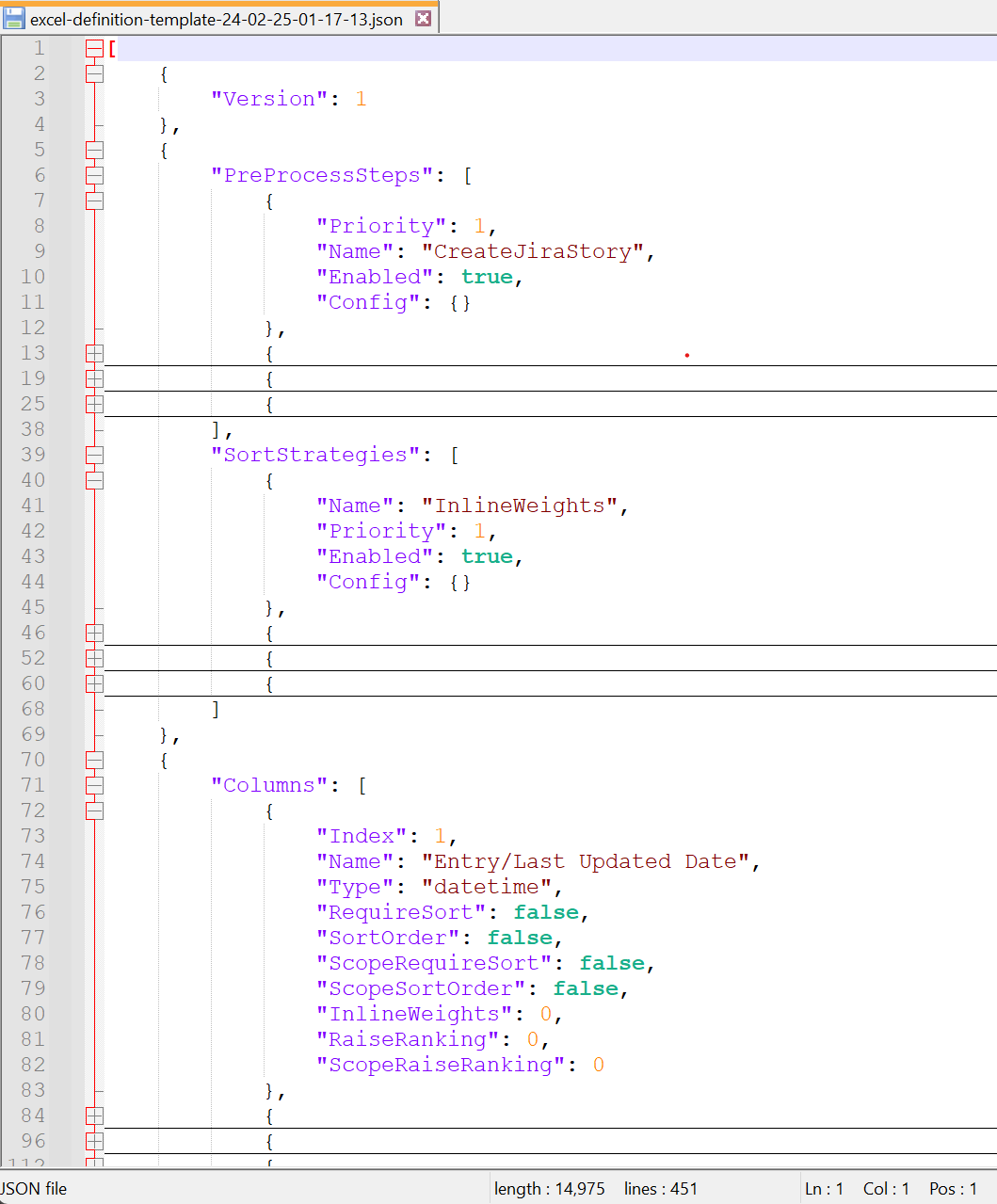
generate-template excel-definitionin the shell to create an file which contain the related definition info. In the definition file, you can define the Excel column name, sort strategies or process steps, etc.
Now, let's take a look at what inside the definition file.
The file composed by 4 parts: basic file info, pre-process step, sort strategy and column info.
Basic File Info#
This part currently only support the
Versionconfiguration.Pre-Process Step#
There are 3 kinds of steps. Each step has the
EnabledandPriorityproperty. TheEnabledproperty indicate whether the step has been applied or not. And thePriorityproperty defines the running sequence.1. Create Jira Story#
This step's name is
CreateJiraStory. When this step is applyed, it will create Jira story for each record in the Excel of which don't have thestoryId(a column inside the Excel) value. Quickstart: Create-Jira-Story2. Filter Out Story#
This step has 2 seperate types.
One is based on the
StoryId(a column inside the Excel) calledFilterOutStoryWithoutId. This step means if the value of thestoryIdis empty, this record will be filtered out and following steps will not process it.Another is based on the Jira
status(a column inside the Excel) calledFilterOutStoryBasedOnJiraStatus. This step means it will filter out the record based on the value of thestatus. If thestatusmatches of any status which configed in theJiraStatusesproperty (inside theConfigproperty), then this record will not be processed by any of the following steps. Below piece of JSON shows how to config:


            {
                "Priority": 1,
                "Name": "FilterOutStoryBasedOnJiraStatus",
                "Enabled": true,
                "Config": {
                    "JiraStatuses": [
                        "SPRINT COMPLETE",
                        "PENDING RELEASE",
                        "PRODUCTION TESTING",
                        "CLOSED"
                    ]
                }
            }
3. Query Jira Information#
This step's name is
RetrieveJiraInformation. It will use theJiraFieldMappingproperty inside the column definition to decide how to query the value from the Jira platform. Quickstart: Gathering-Jira-InfoSort Strategy#
There are 3 kinds of strategies. And like the Pre-Process Step, each strategy has the
EnabledandPriorityproperty.1. Inline Weights#
This step's name is
InlineWeights. Currently, ONLY column of which type is priority support this strategy.2. Sort Order#
This step's name is
SortOrder.3. Raise Ranking#
This step's name is
RaiseRanking.Column Info#
This part describes the Excel file definition and the relationship between the columns inside the Excel and the Jira platform.
Index#Need to start from 1 to N. Support:
1,2and so on.
Name#Should be the same name from the Excel file. Support: non-empty string.
Type#Indicate how to parse the cell value from the Excel. Support:
str(string),bool(true/false),datetime(datetime),priority(priority),milestone(sprint) andnumber(digital number). Notice:prioritytype supportCritical,High,Middle,LowandNA.
RequireSort#Indicate whether the column need be sorted or not. Support:
true/false.
SortOrder#Indicate the sort order. Support:
true(descending) /false(ascending).
ScopeRequireSort#Same as
RequireSortbut add scope limition. The scope range will be configed in the Sort Strategy. Support:true/false.
ScopeSortOrder#Same as
SortOrderbut applied to theScopeRequireSortoption. Support:true(descending) /false(ascending).
InlineWeights#Indicate the weight of the column. Support:
0(no weight) or*.
RaiseRanking#Indicate whether the current record need to be raised to the top of the list or not. Only column of which
Typeisboolis allowed to do this operation. Support:true/false.
ScopeRaiseRanking#Same as
RaiseRankingbut add scope limition. Support:true/false.
JiraFieldMapping#Indicate the relationship with Jira ticket. Support: JSON item like
{ name: "jira_name", path: "jira_field_path" }.
QueryJiraInfo#Indicate whether the column need to query the Jira platform when executing the
RetrieveJiraInformationpre-step. Support:true/false.Sprint Schedule#
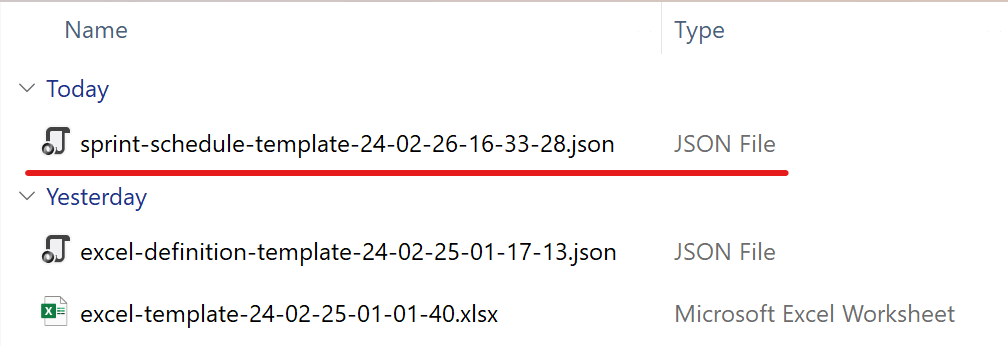
You can type command
generate-template sprint-schedulein the shell then you will see an JSON file has been created in the current folder like below.
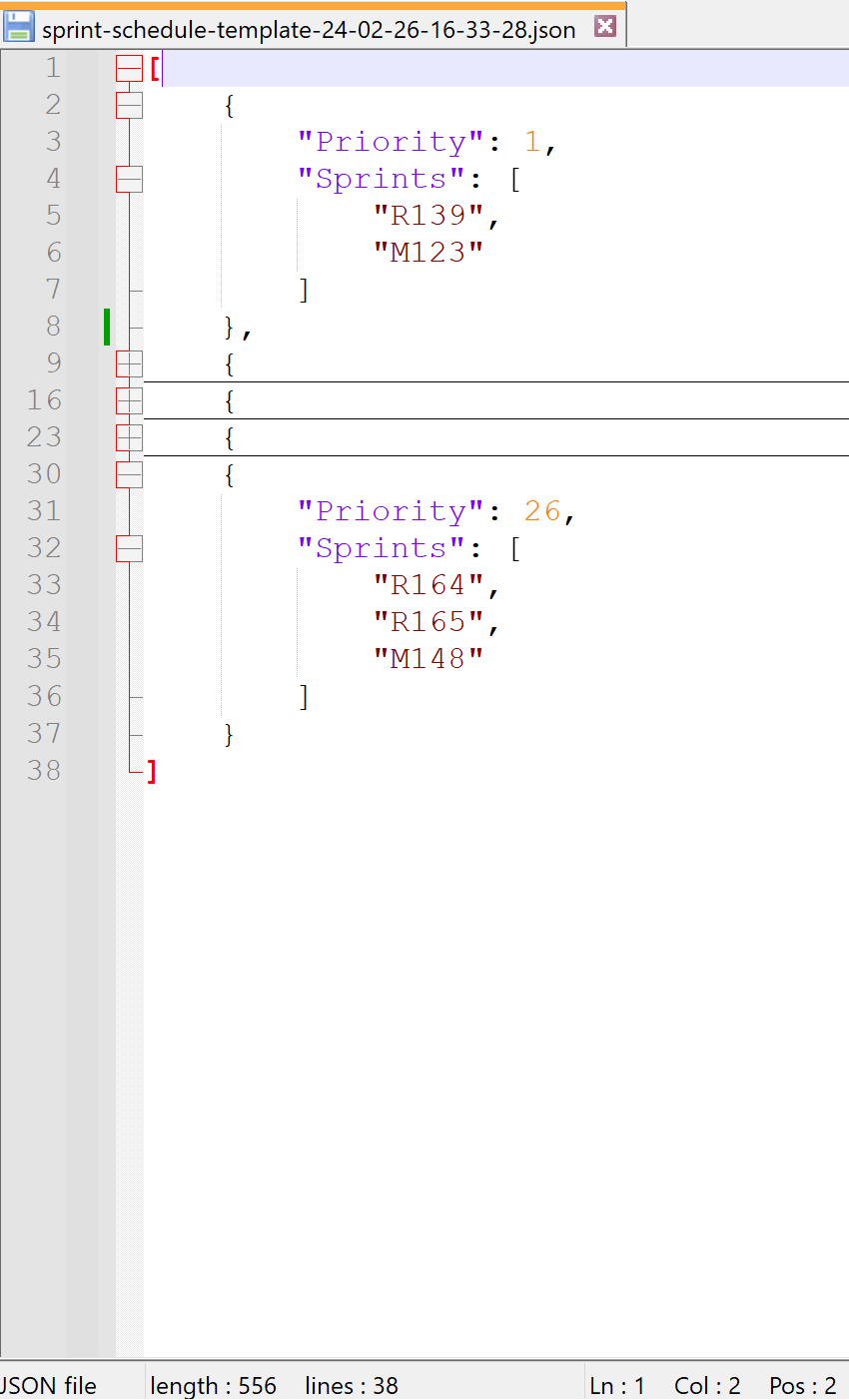
Now, let's take a look at what inside this file.
Column of which type is
milestonewill use this file to decide how to sort records.Jira Field Mapping#
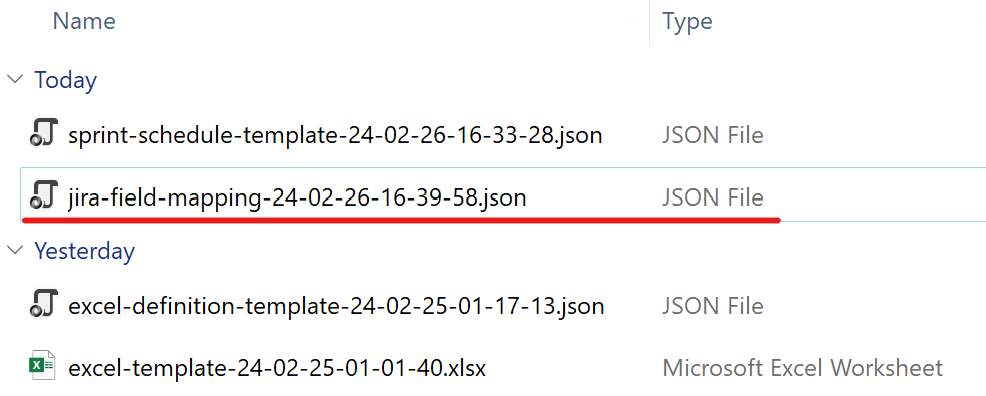
You can type command
generate-template jira-field-mappingin the shell then you will see an JSON file has been created in the current folder like below.
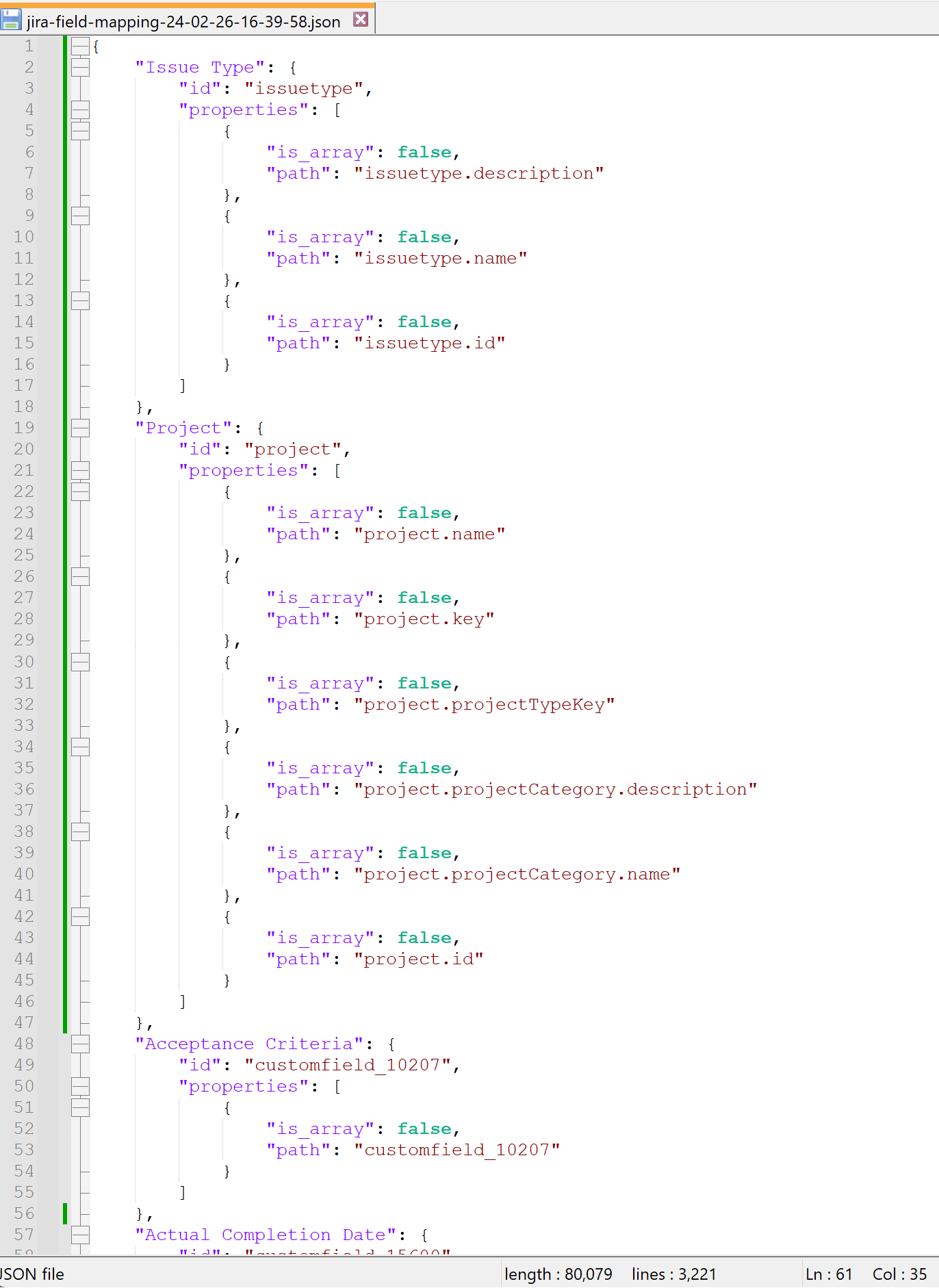
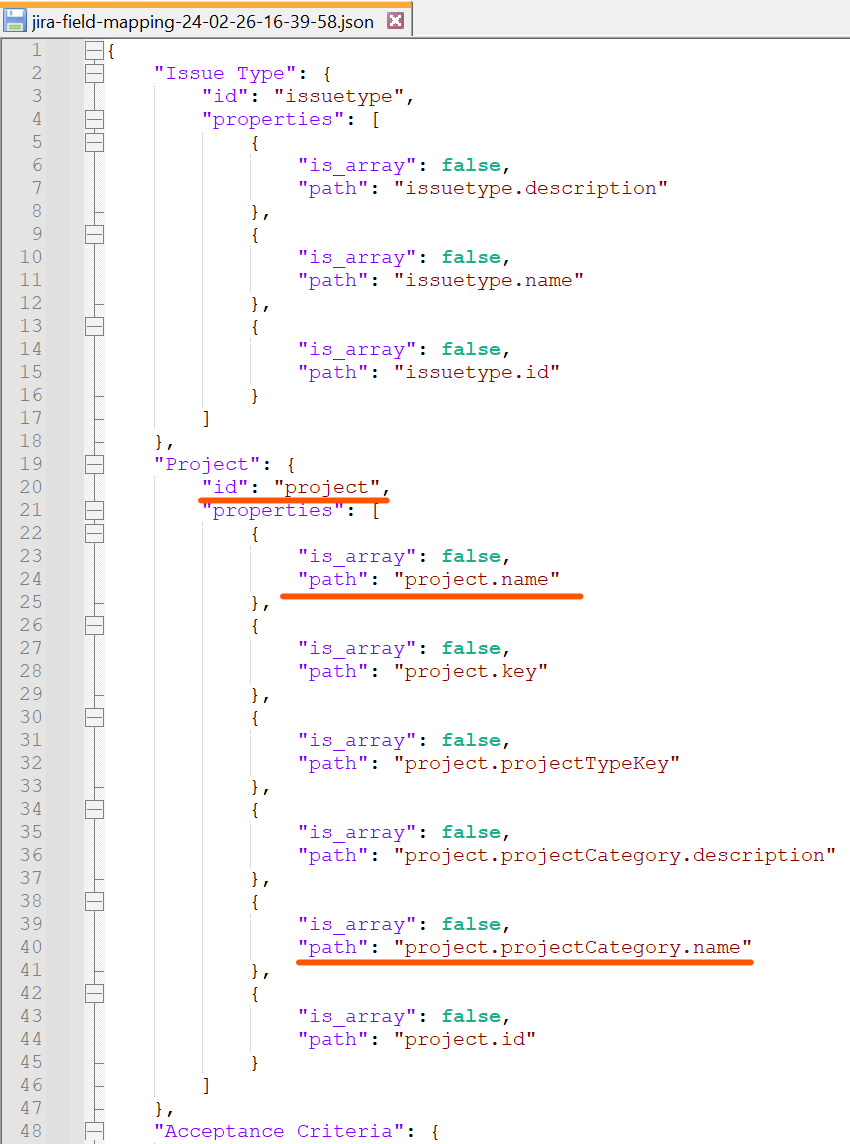
Now, let's take a look at what inside this file.
To understand this part, you need to have a little bit knowledge about the Jira REST API.
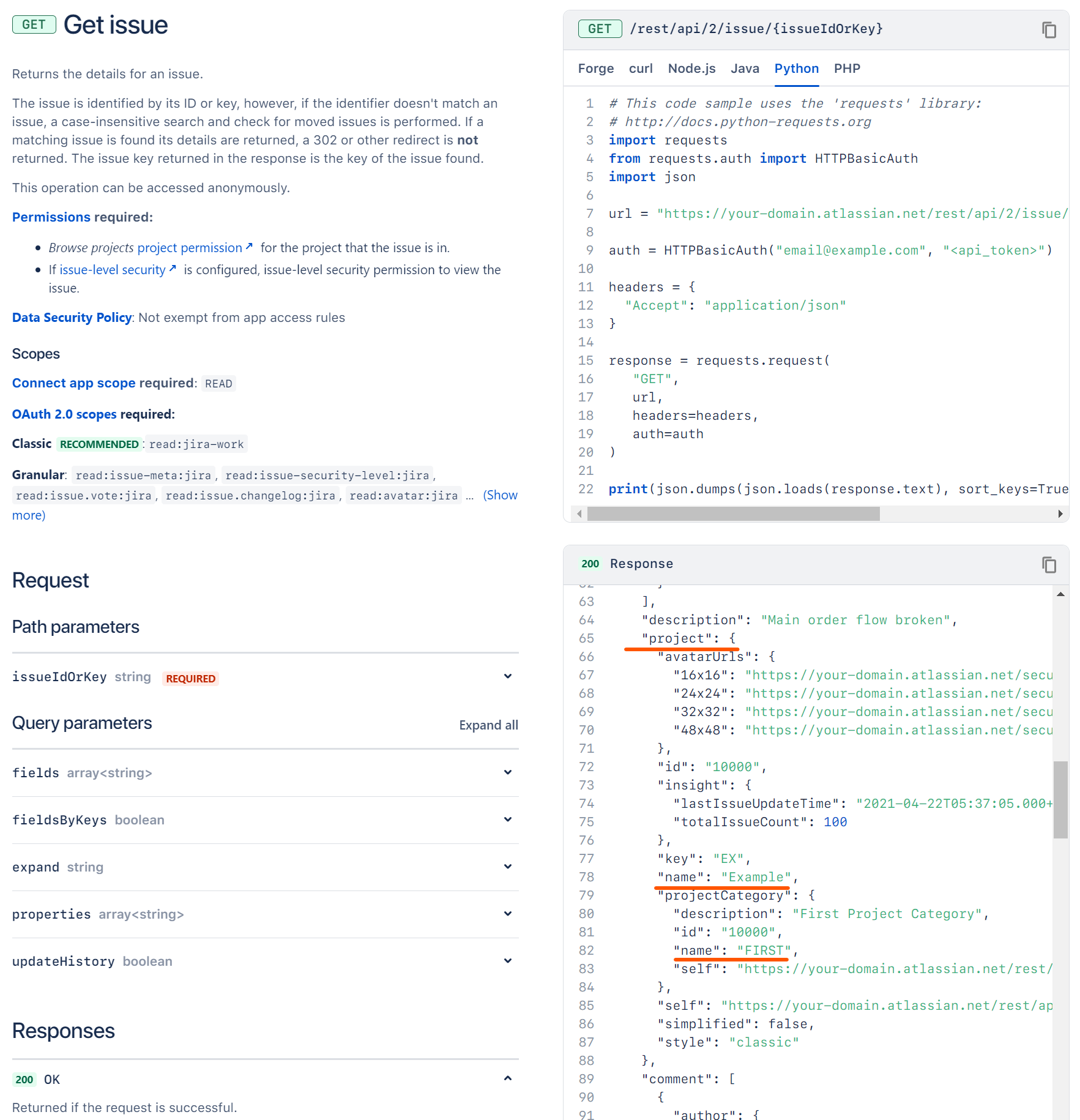
Usually, in our day-to-day job, we are directly using the UI like website to operate the Jira. But actually, it can be operated through the API. For example, if you want to visit a ticket, you don't need to open it in the browser, instead you can call API to get the info like below.
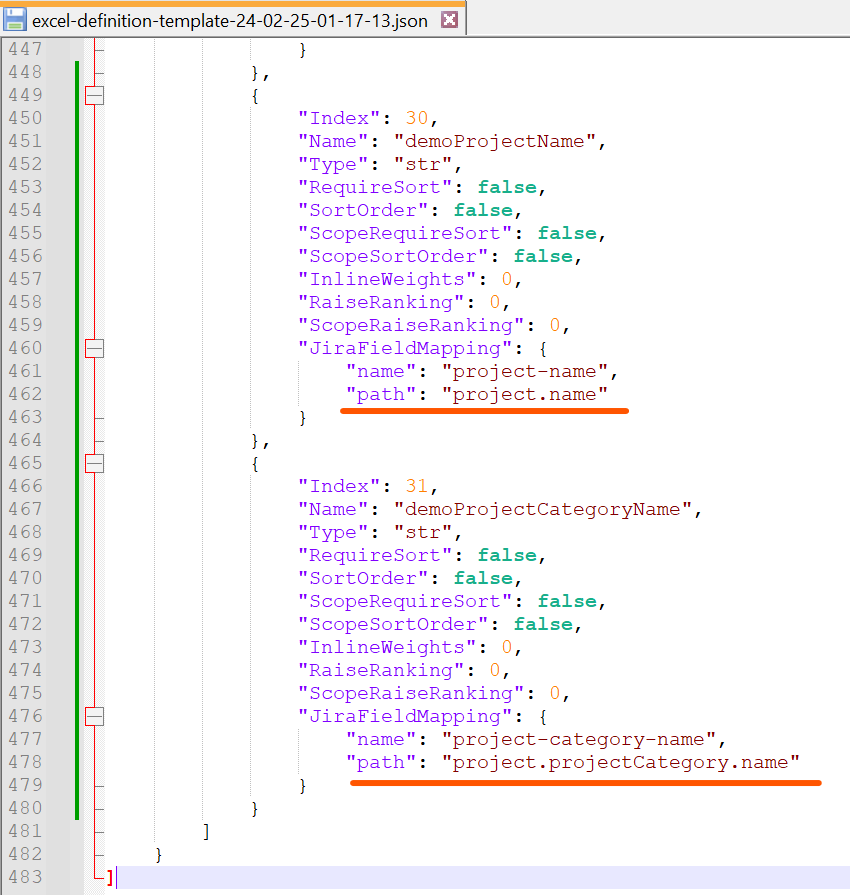
As we can see, the project name of this ticket is Example and the project category name is FIRST. Let's say you want to query this info and put it into the Project Category Name column inside the Excel file. What you need to do is searching the mapping file you just generated by this command, finding a unique item of which
keyis id andvalueis Project.
Then, picking the
pathinformation from it and put it into theJiraFieldMappingof the Column Info like below.
That's it. You can query the Jira info for these two fields.