Add/Update Jira Information#
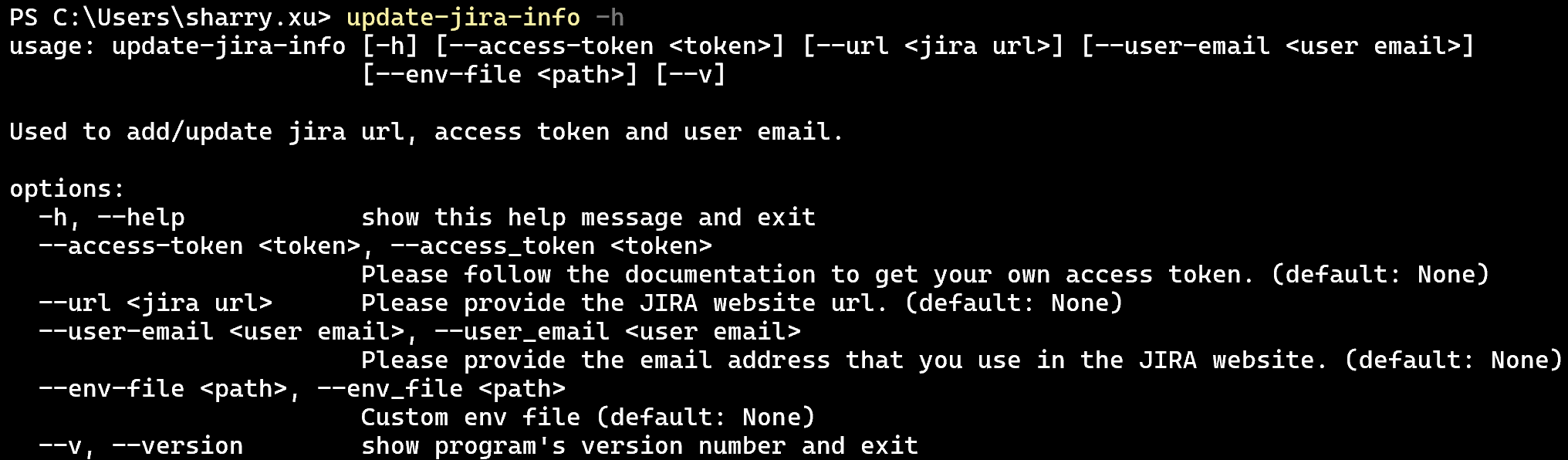
After you install the Jira assistant, you can verify by typing update-jira-info -h in the shell.
Options#
-h and --help
Print out the help message and tell the user how to run the command.
--access-token
Used by Jira API inside the package. Check this for more info.
--url
Used by Jira API inside the package. Check this for more info.
--user-email
Used by Jira API inside the package. Check this for more info.
--env-file
The location where you would like to read the environment file. Absolute or relative paths are all supported.
Default: Environment file inside the package.
Check this for more info.
--v and --version
Print out the version info.
Access Token#
Jira Server#
Currently, this package uses the Basic Authentication to connect/operate with the Jira platform. Here we are using the self-host Jira platform as an example to show you how to generate an API token.
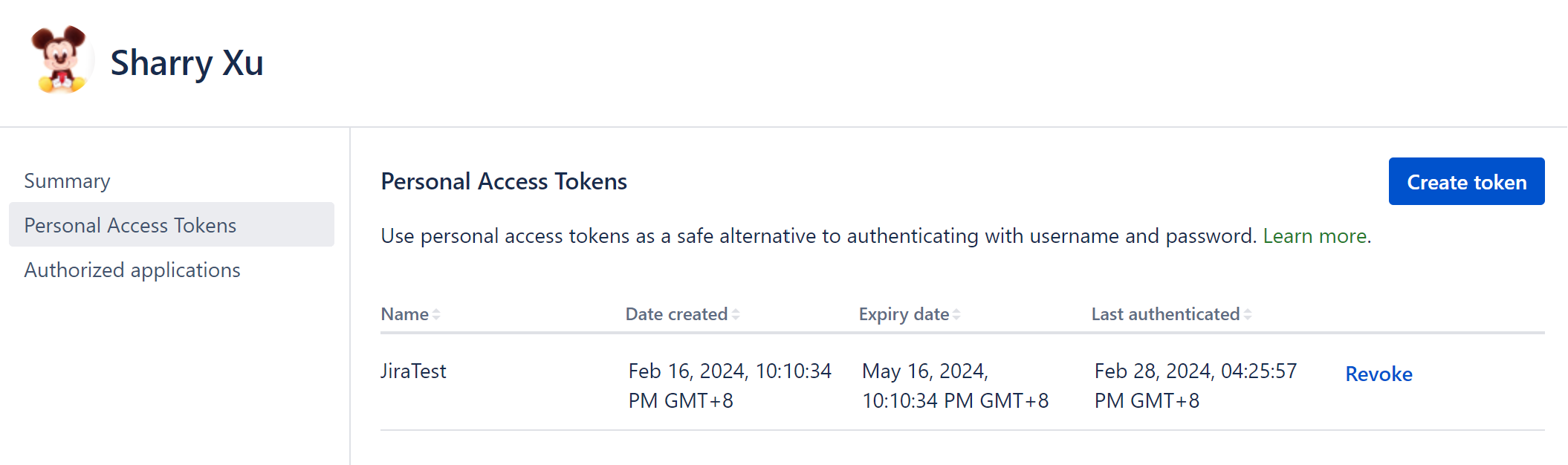
First, you must log into the platform and navigate your profile page. After you choose the Personal Access Tokens tab on the left of the window, you can see the below page.
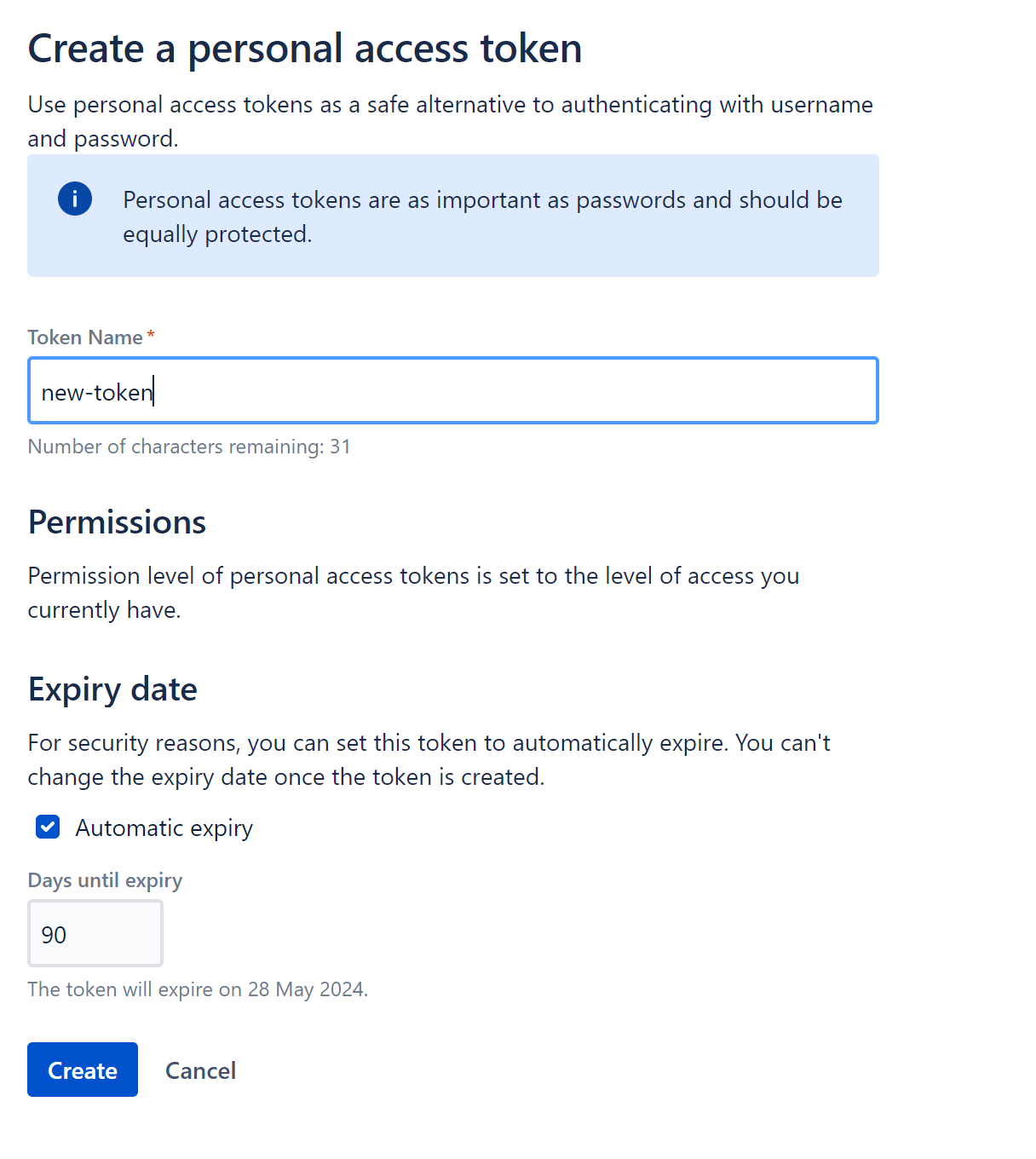
Now, you can click the Create token button at the top of the window. Then a new form will be shown.
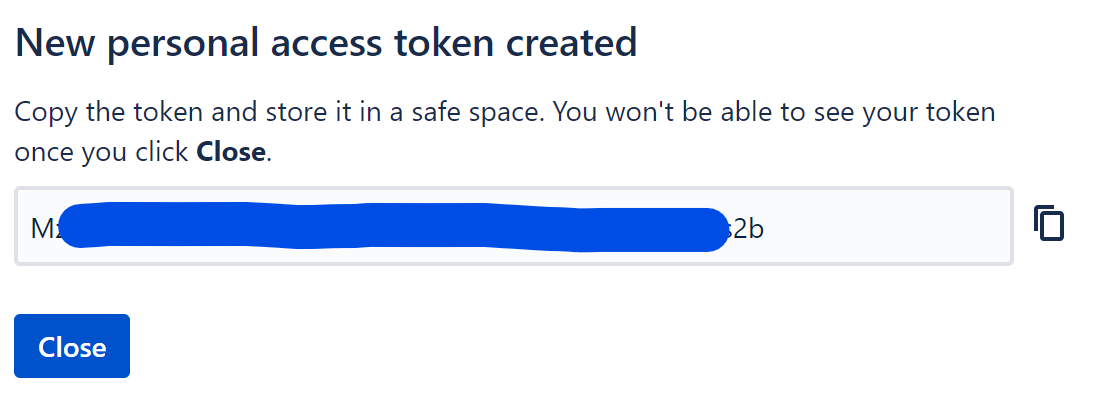
After you click the Create button, you can see a new token has been created.
Jira Cloud#
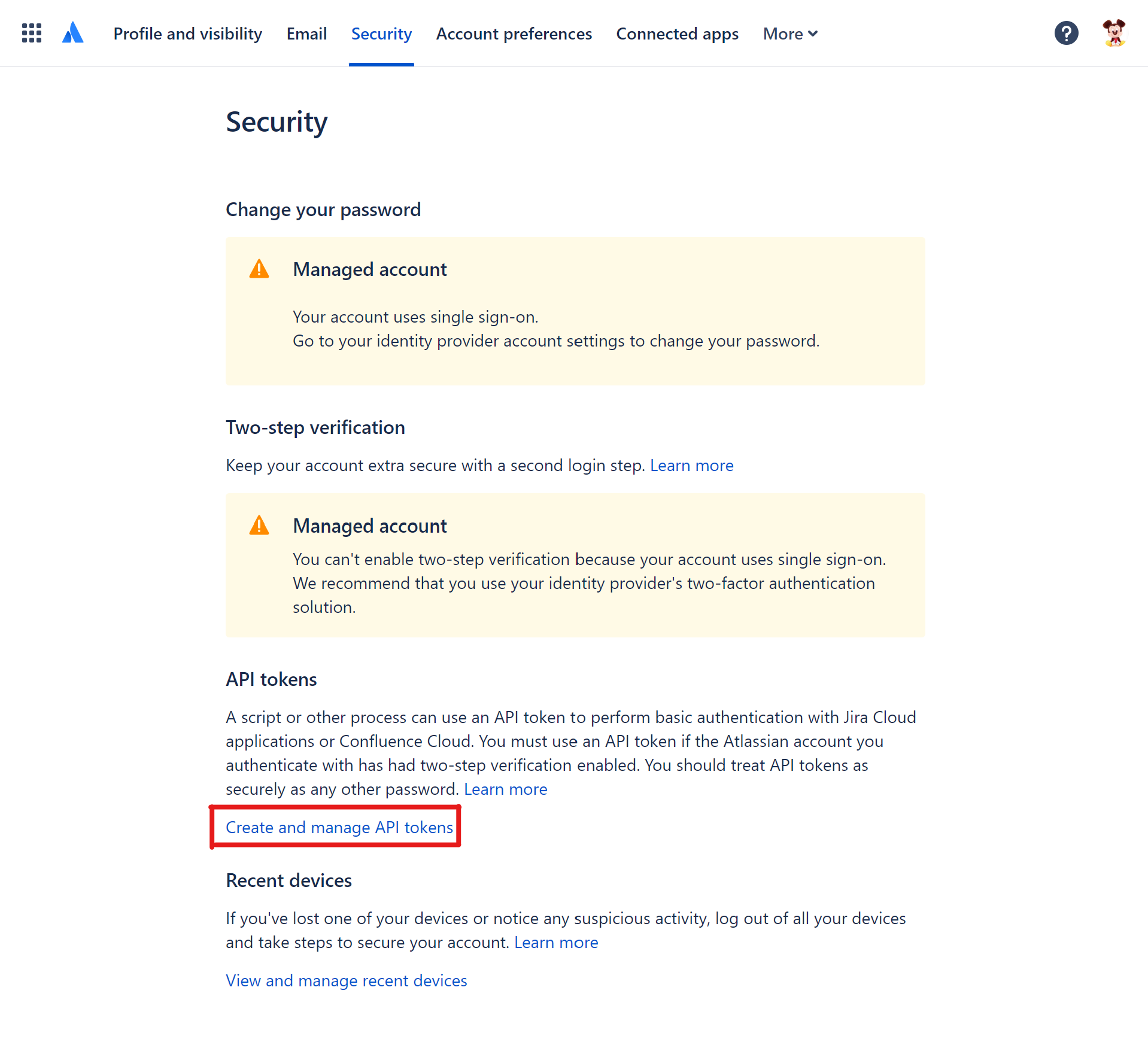
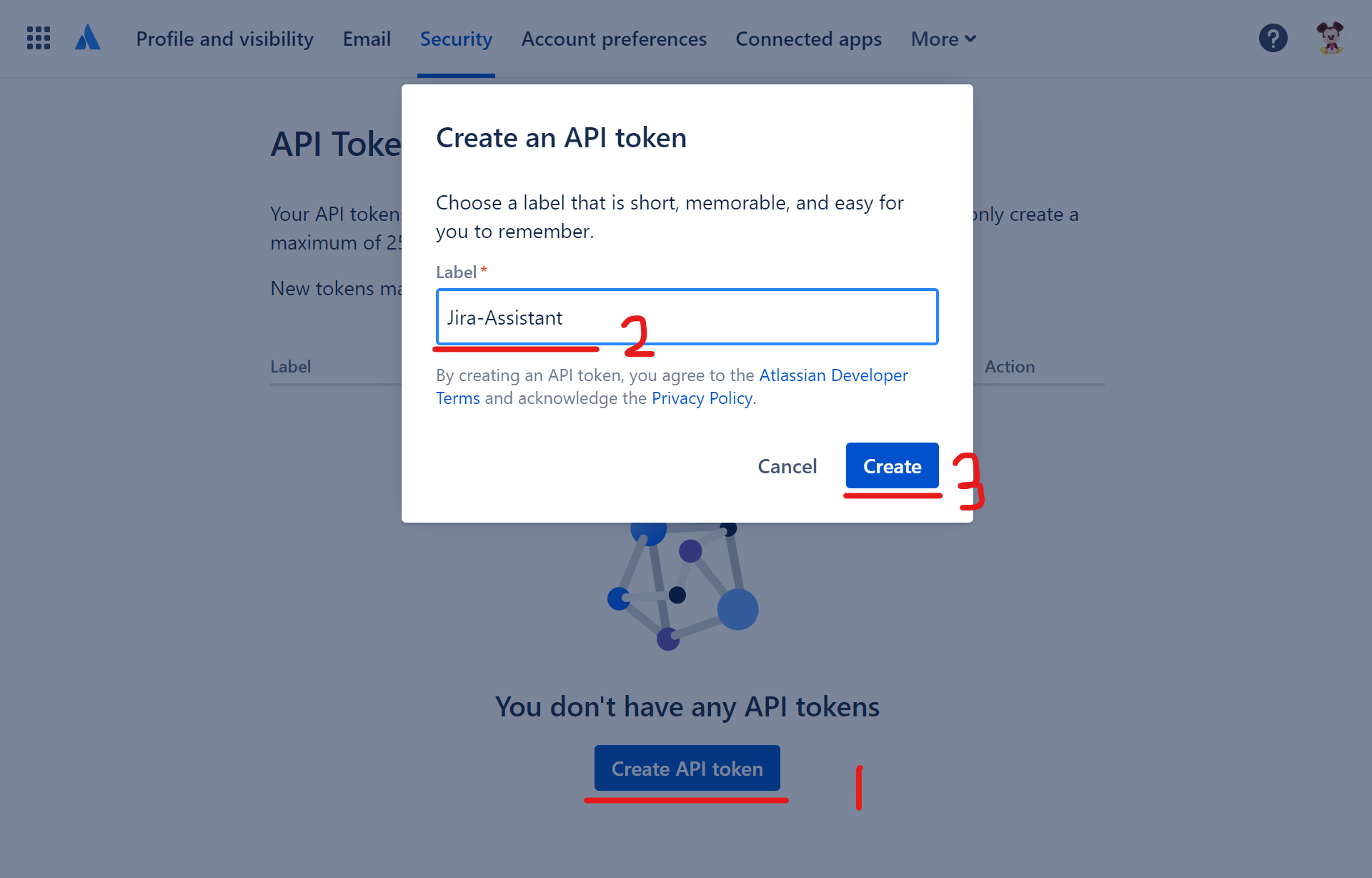
We use the ATLASSIAN Account site to generate the token.
Now, you can follow the red number sequence to create a new token.
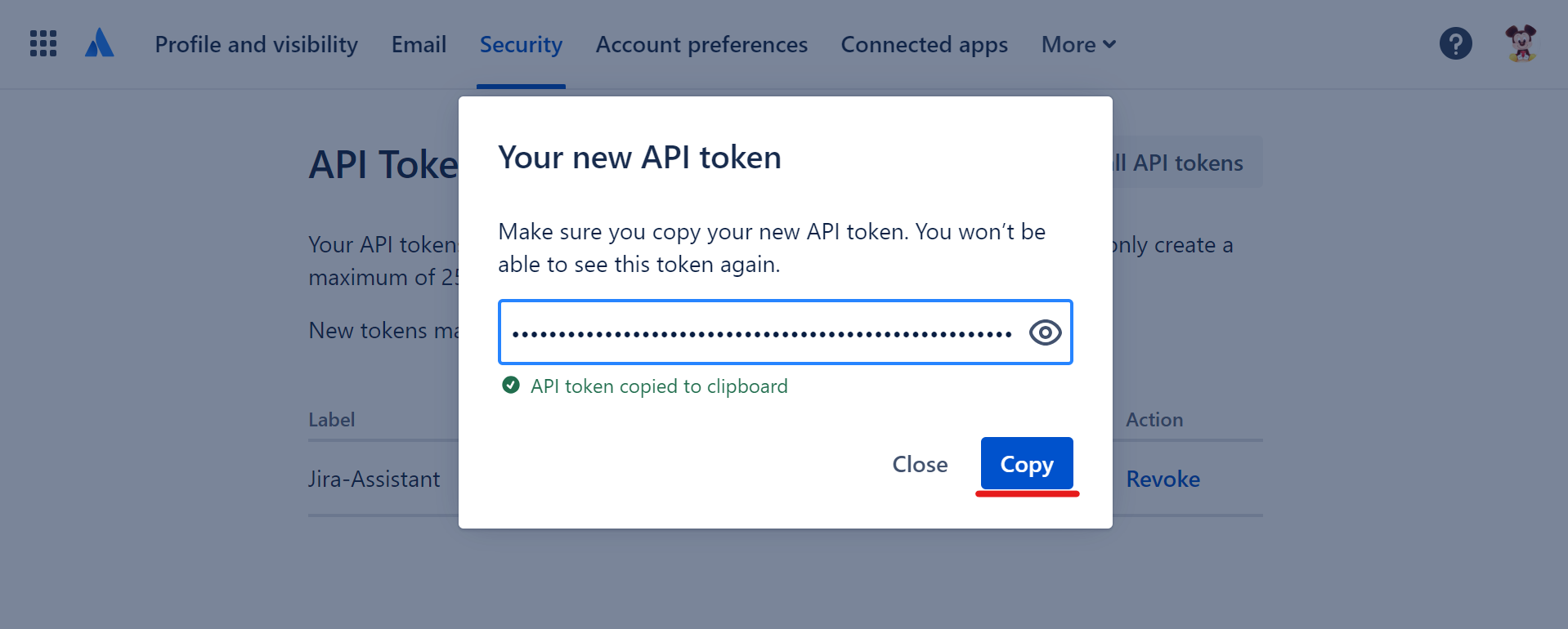
After you click the Create button, you can see a new token has been created and you need to click the Copy button to have it.
If you want to know more about Authentication/Authorization, please check the below documentation.
URL#
This is the Jira website URL you use to visit in the browser.
USER EMAIL#
This is the email address your Jira website display. It's a required field if you are using Jira Cloud.
Environment File#
By default, the AccessToken and the URL parameters will be add/updated in the default env file which is located inside the package folder after installation. This option gives you the ability to create/update your env file so that it can be used in other commands like
process-excel-fileorgenerate-template.Notice: This behavior only applies for the duration of the current command.